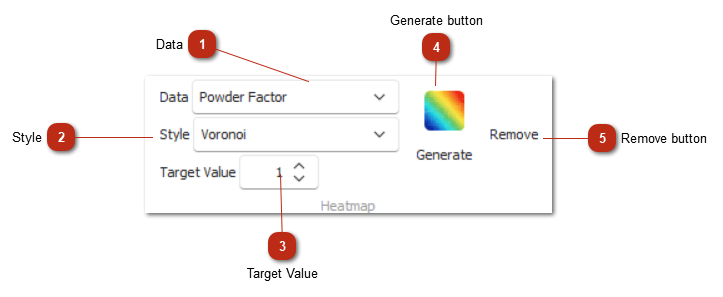
DataSelect the data fields required for generating a heatmap:
|
|

StyleYou can select either Voronoi or Smooth.
Generates a Voronoi‑style heatmap. This option processes significantly faster and is recommended for most scenarios.
Tip: For Powder Factor (energy distribution), the Voronoi style is advised for best performance and clarity.
Produces a smooth color gradient across the design. This method offers a softer, blended visual result but generally takes longer to generate.
|
|

Target ValueThe Target Value allows the user to define the preferred value range for the heatmap. This setting automatically adjusts the color scheme as follows:
Green — values that match or fall within the preferred target range
Red — values above the target range
Blue — values below the target range
|
|

Generate buttonClick Generate to create the heatmap based on your selected options. The generated heatmap will automatically be added to the canvas.
|
|

Remove buttonClick Remove to delete the heatmap from your design/canvas.
|
|